 Shoopy
 Product variants
Define Size or Color options, auto-generate the variant grid, and set prices, stock, and images for each variant.
Product variants let a single product split into multiple buyable options. For example, a t-shirt can sell in three sizes and two colors. The shopper picks one combination, and you track stock per variant. Variants share one product page but keep separate price, stock, and images.
To create the product first, see Adding a product in Shoopy.
Before you begin
- Sign in at
web.shoopy.in. For details, see Logging in with OTP. - Your role must allow catalogue edits. Owner, Admin, Catalog Manager, Marketing Manager, and Billing Manager can add variants.
- Location Admins can view but not add or remove variants.
- The product must be Simple (not Bundle or Multipack). For those types, see Shoopy product bundles and multipacks.
When to use variants
Use variants when one product has real, buyable options. For example:
- Size — S, M, L, XL
- Color — Red, Blue, Black
- Flavor — Vanilla, Chocolate, Strawberry
- Weight / Pack — 100g, 250g, 500g
- Material — Cotton, Linen
If shoppers need to pick one choice from a list before “Add to cart”, you want variants.
When not to use variants
- Completely different items sold together — those are Bundles.
- A box of the same item (pack of 12) — that’s a Multipack.
For these, see Shoopy product bundles and multipacks.
Two places to work with variants
You can reach variants from two sidebar entries under Catalog:
| Sidebar item | What it shows |
|---|---|
| Products | The grouped list. Each row is one product; variants are a badge like Variants (3). |
| Product Variants | The flat list. Every variant across the catalogue sits as its own row. |
Use Products to add variants to a specific item, and Product Variants to bulk-scan stock or prices across all variants at once.
How to add variants
The fastest path is from the Products list:
- Open Catalog → Products.
- Find your product and click its ⋯ (more) menu.
- Pick Add Variant. The variant drawer slides in from the right.
- Fill the variant fields (see below).
- Click Save Variant.
Repeat for each combination you sell. A product in 3 sizes × 2 colors becomes 6 variants.
Option axes — Size, Color, and custom
Each product has one or more option axes. An axis is the question you ask the shopper (“What size?”) and its values are the buttons they click.
- Option Name — Free text, or pick from your saved attributes. For example,
Size. - Values — Comma-separated list. For example,
S, M, L, XL.
Shoopy then auto-generates one row per combination. For example, Size: S, M, L with Color: Red, Blue creates six variants automatically.
Fields on each variant
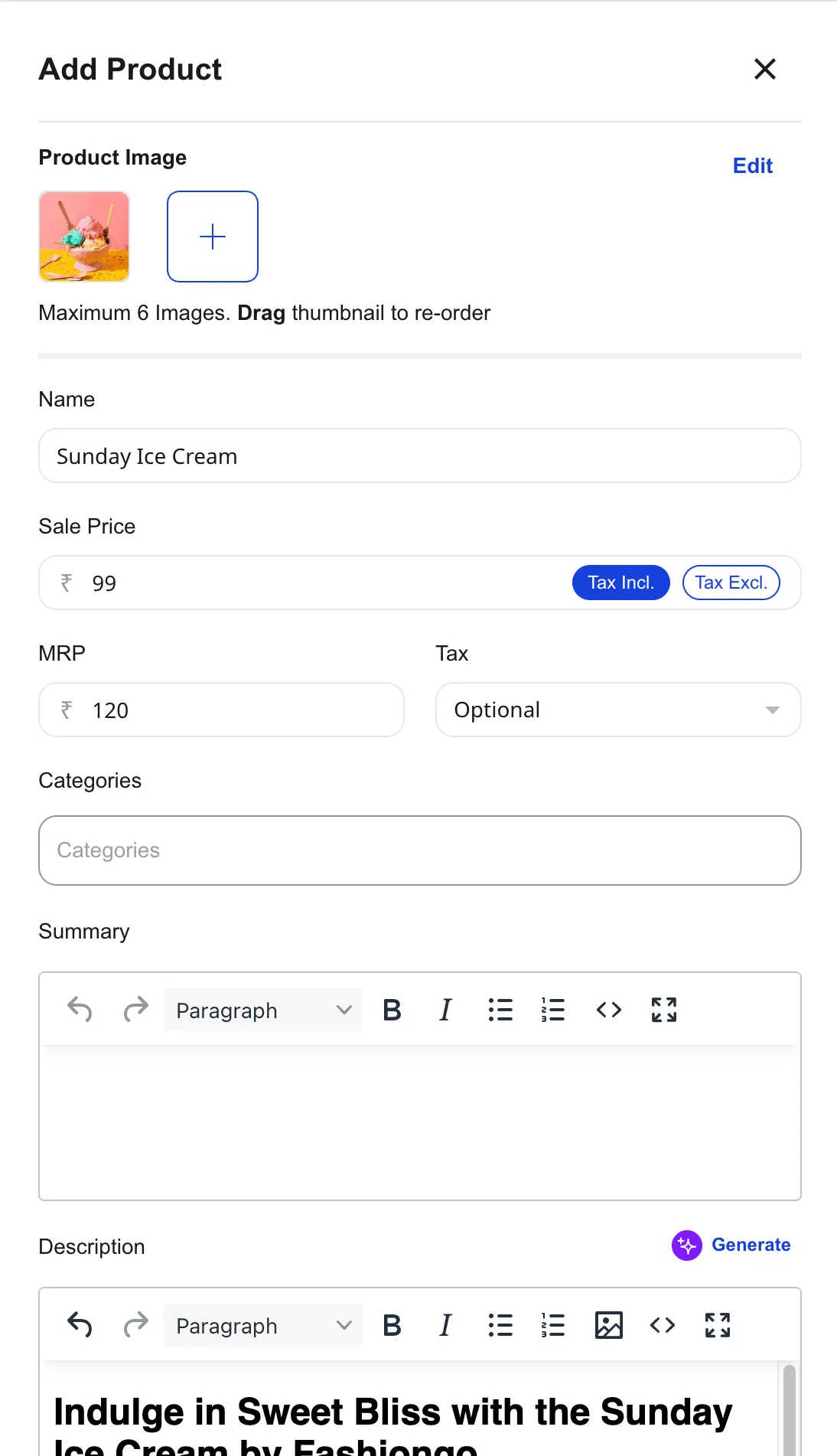
The variant drawer holds a compact form per variant:
| Field | Required? | Notes |
|---|---|---|
| Image(s) | Optional | Up to 6 per variant. These override the parent product’s images. |
| Sale Price | Required | The price for this specific variant. |
| MRP | Optional | Auto-fills if blank. Shoopy enforces MRP ≥ Sale Price. |
| Quantity | Optional | Stock for this variant only. |
| SKU / Barcode | Optional | A unique code per variant. |
| Description | Optional | A Generate button drafts from the product name. |
Images are the key one. A red t-shirt can show red photos, and a blue t-shirt can show blue photos on the same product page.
How pricing and stock display
When a product has variants, the Products list shows a price range instead of one price. For example, a product with ₹30, ₹35, and ₹40 variants shows ₹30.00 - ₹40.00.
The Quantity column shows the sum of variant stock — three variants with 10 units each show a parent total of 30.
Don’t worry about the top-level Sale Price on a variants-enabled product. Shoppers never pay that number — each variant has its own.
Per-variant images
Each variant can have its own image set:
- Up to 6 images per variant (higher plans allow more).
- Override parent: If you upload images to a variant, they replace the parent images on that variant’s view.
- Inherit parent: If you leave variant images empty, Shoopy falls back to the parent product’s images.
A shopper picking “Red” sees the red photos; picking “Blue” swaps the gallery to blue.
Editing an existing variant
From the Product Variants page:
- Find the variant row.
- Click the ⋯ menu.
- Pick View or Edit.
- Change any field and save.
The variant edit drawer is the same form as Add Variant. Stock In / Stock Out options sit in the same menu for quick inventory tweaks.
Removing a variant
- From Product Variants or Products, click the variant’s ⋯ menu.
- Pick Remove.
- Confirm in the modal.
Remove with care. A variant referenced by past orders still shows in those orders, but it disappears from the catalogue and the live store.
Tips
- Use the same axis names across your catalogue. For example, always “Size”, never “Sizes” or “Sz”, so customers see a consistent filter.
- Set variant images first. Shoppers trust a product more when the color they pick matches the photo.
- Trim unused combinations. For example, if “Red XL” doesn’t exist, delete that row rather than setting Quantity = 0.
- Bulk scan from Product Variants. A quick skim here shows low-stock rows across the whole catalogue.
- Keep the parent product’s first image neutral. Each variant’s own images carry the color cue.
Troubleshooting
I don’t see “Add Variant” in the ⋯ menu
Confirm the product type is Simple — Bundle and Multipack products don’t support variants in this way. A Location Admin role also can’t add variants, so ask the owner to update your role if needed.
My variants didn’t auto-generate
You may have added option values without commas. Shoopy splits values on commas, so enter Red, Blue, Black — not Red Blue Black.
Price range shows ₹0.00 on the Products list
One or more variants are missing a Sale Price. Open the variants and fill the blanks.
Variants show the same image no matter what color is picked
None of the variants have their own images yet, so they all inherit the parent’s gallery. Open each variant and upload color-specific images.
A deleted variant still appears in old orders
That’s by design. Past orders keep a snapshot of what was bought — deletion only removes the variant from the catalogue, not from history.