 Shoopy
 Product bundles and multipacks
How bundles and multipacks work — sell kits of different items together or packs of the same item, with price and stock.
Bundles and multipacks are two product types built for selling more than one unit at a time. A Bundle groups different items together, and a Multipack sells several units of the same item as one pack. Both live next to Simple products in your catalogue and share the same admin flow.
For plain single-SKU products, see Adding a product in Shoopy. For option-axis flows like Size or Color, see Shoopy product variants.
Before you begin
- Sign in at
web.shoopy.in. For details, see Logging in with OTP. - Your role must allow catalogue edits: Owner, Admin, Catalog Manager, Marketing Manager, and Billing Manager can create bundles and multipacks.
- Location Admins can view but not create or remove these product types.
- The child products you want to include must already exist as Simple products.
Bundles vs multipacks
The two types look similar but solve different problems.
| Type | What it sells | Example |
|---|---|---|
| Bundle / Kit | Different items sold together | Shampoo + Conditioner + Comb |
| Multipack | Several units of the same item | Pack of 12 of one soap bar |
Pick Bundle when the box holds different SKUs; pick Multipack when the box holds many copies of one SKU.
When not to use either
- Different sizes of one product (100g, 250g, 500g) — use variants on a Simple product. See Shoopy product variants.
- Different colours or flavours — also variants, not a bundle.
Where bundles and multipacks live
Both types sit in your main catalogue alongside Simple products:
- Open Catalog → Products.
- Use the Product Type filter at the top to show only Bundles or only Multipacks.
- Each row shows a type badge so you can spot them at a glance.
Bundles and multipacks are first-class products. They appear in the storefront, in orders, and in reports just like any Simple product.
How to add a bundle
Use a Bundle when you want to sell a set of different items as one SKU.
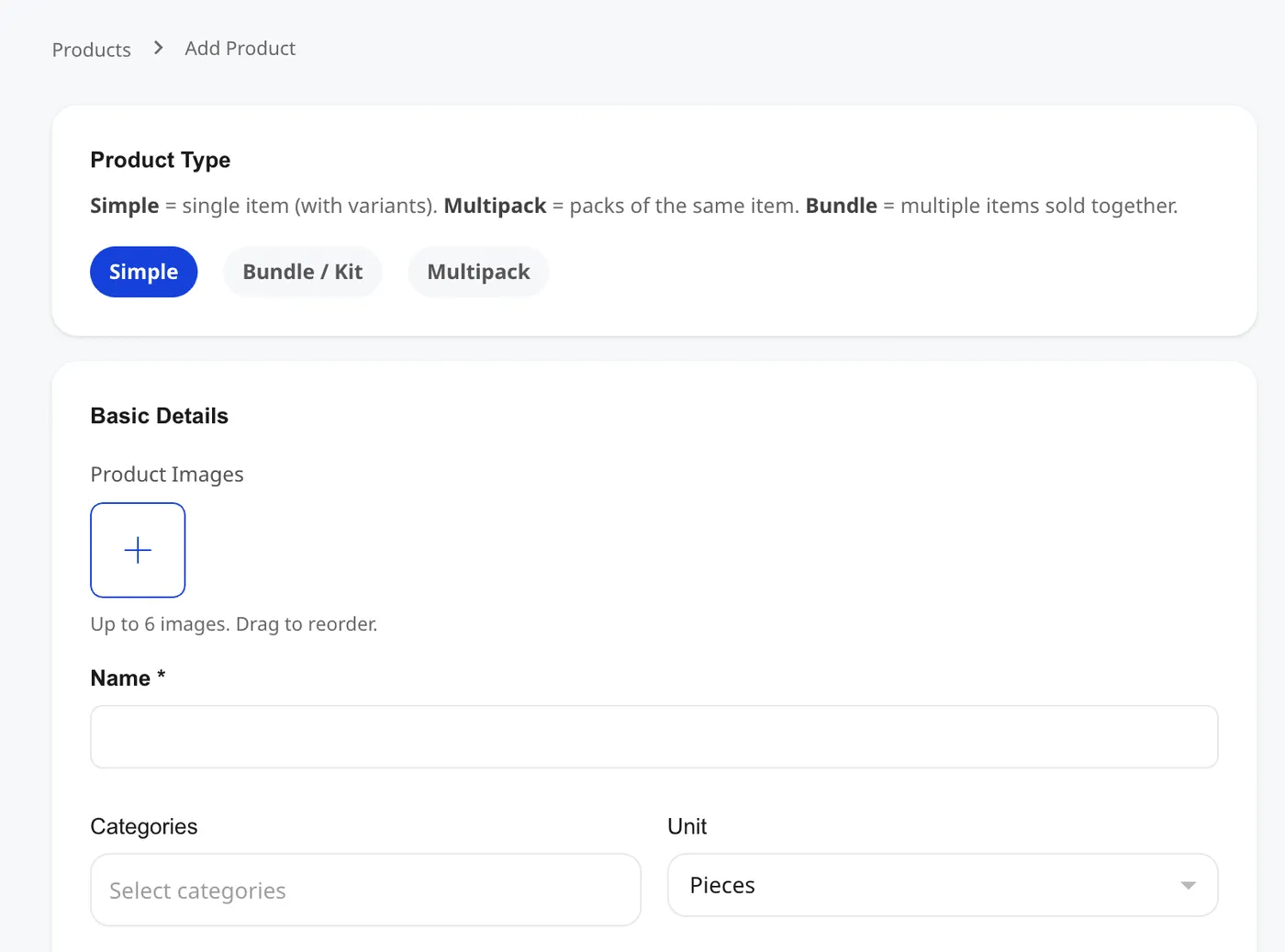
- Open Catalog → Products and click + Add Product.
- In the Product Type row, pick Bundle / Kit.
- Enter the bundle’s name, images, Sale Price, and MRP.
- Scroll to Components and search for each child product.
- For each child, set Qty — how many of that item are in one bundle.
- If the child has variants, pick which variant SKU is included (or allow a set).
- Click Save Product.
A gift set of “1× shampoo, 1× conditioner, 1× comb” becomes one bundle row with three components.
Tip: The Sale Price auto-fills from the sum of child prices × quantity. You can override it for a bundle discount.
Limits and rules for bundles
- Up to 20 components per bundle.
- Components must be Simple products — you can’t nest a bundle inside a bundle.
- Product Type is locked after save. A bundle can’t later become a Simple product.
Bundle pricing and stock
Pricing. The bundle’s Sale Price auto-fills as sum(child sale price × quantity), and MRP auto-fills the same way. Both fields are editable — you can undercut the sum for a bundle discount or round the total.
Stock. Shoopy derives bundle stock from the children: the bundle can only ship as many copies as the weakest child allows.
- Formula: min(child stock ÷ qty per bundle) across all components.
- Example: a bundle with
1× shampoo (stock 10)and2× comb (stock 20)has stockmin(10/1, 20/2) = 10.
Running out of any one child zeroes the bundle’s stock, so keep all child products topped up.
How to add a multipack
Use a Multipack when you sell the same item in different pack sizes.
- Open Catalog → Products and click + Add Product.
- In the Product Type row, pick Multipack.
- Search for the base product — the single item the pack contains.
- The form auto-fills the name, images, categories, and description from the base product.
- Scroll to Pack Options and add one row per pack size you sell.
- For each pack option, set Pack size, Price, MRP, and an optional Label.
- Click Save Product.
A water bottle sold as “Pack of 6”, “Pack of 12”, and “Pack of 24” becomes one multipack with three pack options.
Pack Options inside a multipack
Each row in Pack Options defines one buyable pack. Shoopy auto-calculates the price as base sale price × pack size, but you can override it to offer bulk savings.
| Field | Required? | Notes |
|---|---|---|
| Pack size | Required | A whole number. For example, 12. |
| Price | Required | Auto-fills as base × size. Editable. |
| MRP | Optional | Auto-fills, toggle to manual if needed. |
| Label | Optional | Defaults to Pack of {size}. |
| Restrict variants | Optional | Limits this pack to chosen variants of the base product. |
The storefront shows your pack options as buyable choices; shoppers pick the pack they want and add it to cart.
If the base product has variants
When the base product has variants (say, Red and Blue shirts), you can point a pack option to specific variants. For example:
- Pack of 12 — Red shirts uses only the Red variant SKU.
- Pack of 12 — Blue shirts uses only the Blue variant SKU.
This lets you sell per-colour packs without creating separate products.
Multipack pricing and stock
Pricing. Each pack option has its own price. The Products list shows the default pack’s price — usually the lowest one.
Stock. Shoopy tracks stock per pack option. The Products list shows Varies if pack options have different stock levels.
A multipack with three pack options is three separate stock counts behind the scenes.
Editing a bundle or multipack
From Catalog → Products:
- Find the row.
- Click the ⋯ menu.
- Pick Edit.
- Change any field and save.
The Product Type is locked after the first save — a Bundle stays a Bundle and a Multipack stays a Multipack. To change the type, create a new product and retire the old one.
Removing a bundle or multipack
- From Products, click the ⋯ menu on the row.
- Pick Remove.
- Confirm in the modal.
Remove with care. Past orders keep a snapshot of the bundle or pack that was bought, but the product disappears from the catalogue and live store.
Tips
- Name bundles clearly. For example, “Hair Care Starter Kit” reads better than “Bundle 1”.
- Keep child products in stock. A bundle is only as strong as its weakest child.
- Use pack labels for multipacks. For example,
Family Pack (12)sells better thanPack of 12. - Offer a small bundle discount so the total looks cheaper than buying children separately.
- Set images. Bundles get a lifestyle shot and multipacks get a clean pack photo.
Troubleshooting
I can’t find Bundle or Multipack in the Product Type row
Confirm you’re on the Add Product screen, not Add Variant. The Product Type chips appear only when creating a new product — Product Type is locked after save.
My bundle shows stock 0 even though children are in stock
One or more components is below the required qty. For example, a bundle that needs 2× comb needs at least 2 combs in stock. Open the child product and raise the stock.
My multipack price auto-calculated but I want a bulk discount
Click the Price field on that pack option and type the discounted amount. The auto-calculation is a starting point, not a lock.
I added a variant to a multipack pack option but the storefront shows the wrong colour
Open the pack option, check Restrict variants, and confirm only the intended variant SKU is ticked. Unchecked SKUs won’t ship.
I deleted a child product and my bundle broke
Past orders keep the snapshot, but the bundle now references a missing item. Open the bundle, remove the stale component, and add the replacement.