 Shoopy
 Update stock quantity — Stock In and Stock Out
Open Stock In or Stock Out from the row menu, pick a location, tap a quick-add chip, and save. Stock adjustments are per SKU and per location.
Stock In and Stock Out adjust the on-hand units for a SKU. When fresh inventory arrives, you Stock In. When stock is damaged, sampled, or written off outside an order, you Stock Out. Both actions live on every product row, and both apply per location if your store has more than one. For running stock across several outlets, see multi-store retail.
For a refresher on the catalogue itself, see Adding a product in Shoopy. For bulk adjustments across many SKUs at once, see Bulk product upload via CSV.
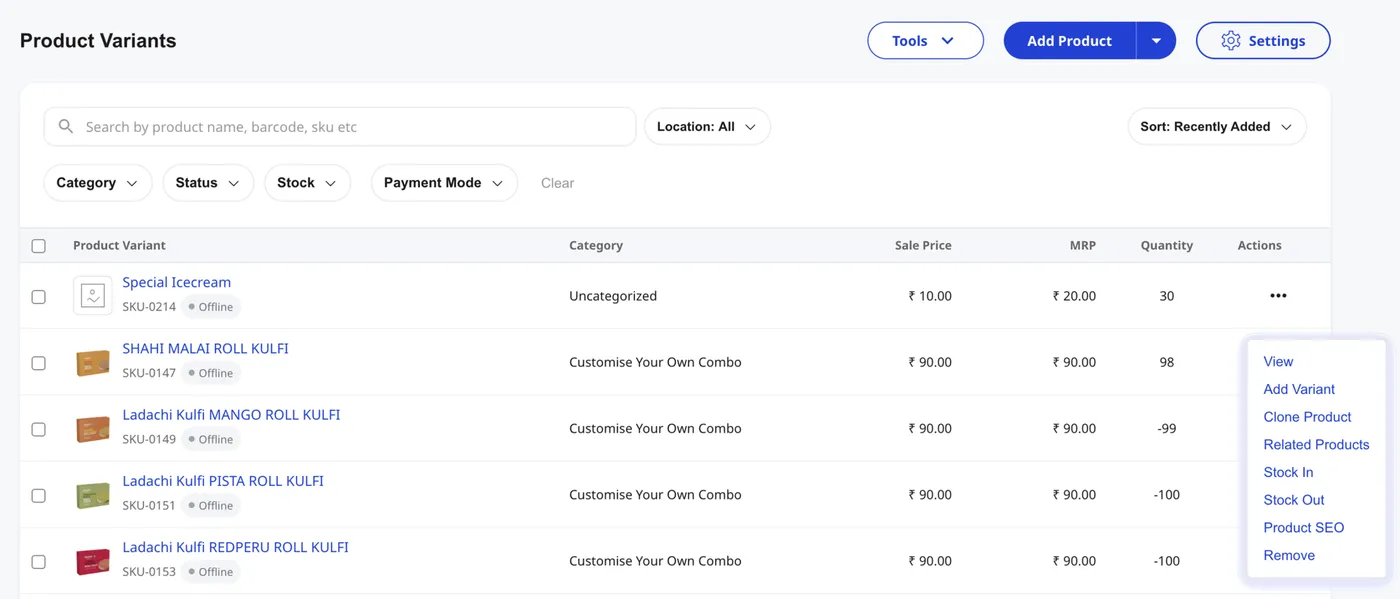
Before you begin
- Sign in at
web.shoopy.in— see Logging in with OTP. - Your role must allow inventory edits: Owner, Admin, Catalog Manager, and Location Admin can update stock.
- A Location Admin only sees their assigned locations in the Location dropdown. Ask your Owner or Admin if you need to adjust stock at a location you do not own.
- Every plan includes Stock In and Stock Out — no upgrade needed.
When to use Stock In vs Stock Out
Both actions adjust the same on-hand counter — they only differ in direction.
- Stock In when units arrive: a new shipment from a supplier, a manufacturing batch finishing, a customer return that goes back into sellable stock, or a count correction that revealed extra units.
- Stock Out when units leave outside a normal order: damaged or expired stock, samples handed out, in-store consumption, theft / shrinkage, or a count correction that revealed missing units.
- Do not Stock Out for orders. Online and POS orders deduct stock automatically — only Stock Out for non-sale movements. Otherwise you double-count and the storefront shows the wrong availability.
How to update stock from the row menu
The Stock In and Stock Out actions live in the per-row Actions menu on the catalogue list.
- In the left sidebar, click Catalog, then click Products.
- Find the product or variant whose stock you want to change. Hover the row to reveal the three-dot Actions menu on the right.
- Click Stock In (to add units) or Stock Out (to remove units).
- The Stock modal opens with the SKU’s name as the subtitle and the current Available Stock displayed.
- Pick a Location if your store runs more than one, then enter a quantity using the +/− counter or a quick-add chip.
- Review the stock-after preview banner. Click Stock In or Stock Out to save.
A success toast — “Stock Added Successfully” or “Stock Removed Successfully” — confirms the change, and the new on-hand count appears in the Quantity column on the catalogue list right away.
The Stock In modal — adding units
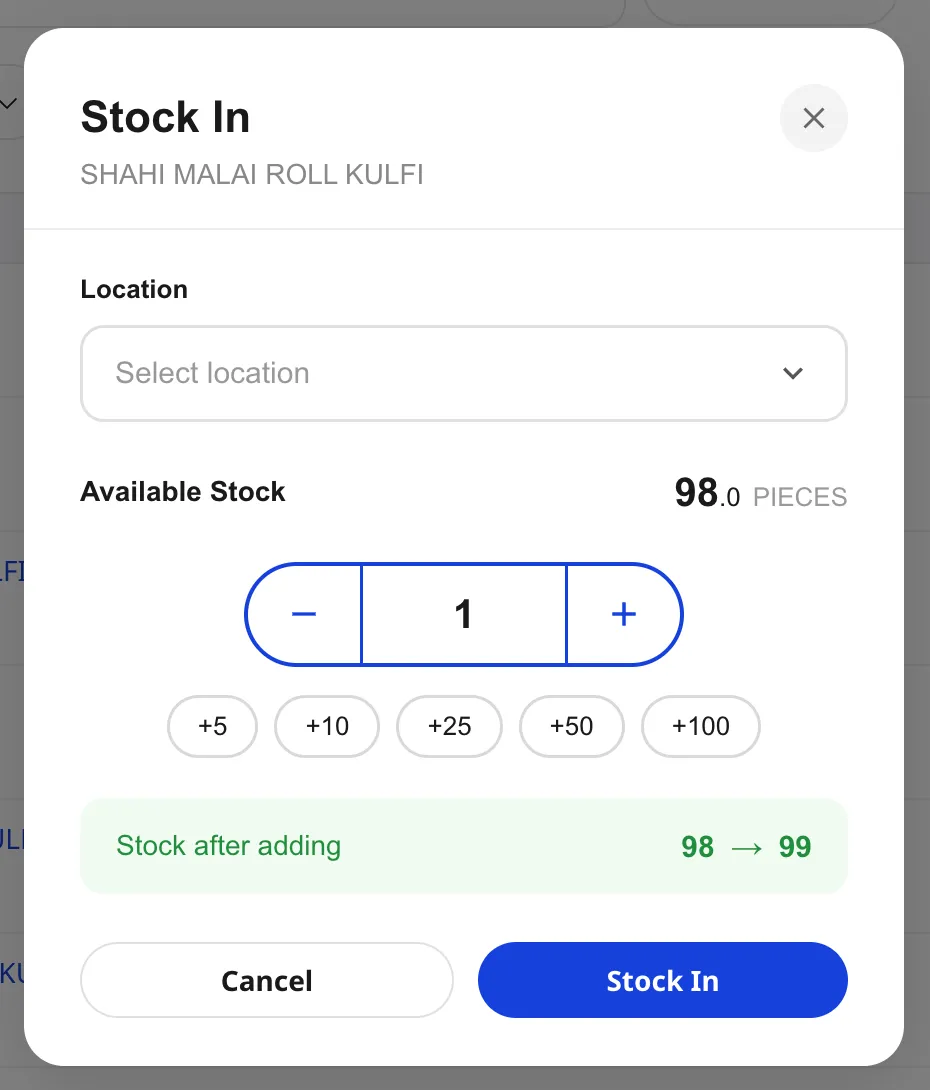
The Stock In modal shows:
- Location dropdown — picks which location receives the units. A single-location store can leave it as the default; multi-location stores must pick one each time.
- Available Stock — the current on-hand count for the chosen SKU at the chosen location, with the unit (PIECES, KG, etc.) shown to the right.
- Quantity counter — the +/− buttons step the value by 1; type a number directly to set any value.
- Quick-add chips —
+5,+10,+25,+50,+100add that many units to the counter in one tap. For a fresh shipment of 50 cases, hit+50once instead of typing. - Stock-after banner — green, reads “Stock after adding 98 → 99” (current → new), so you see the resulting on-hand count before you commit.
- Stock In button — saves and closes. The catalogue list refreshes with the new quantity.
The Stock Out modal — removing units
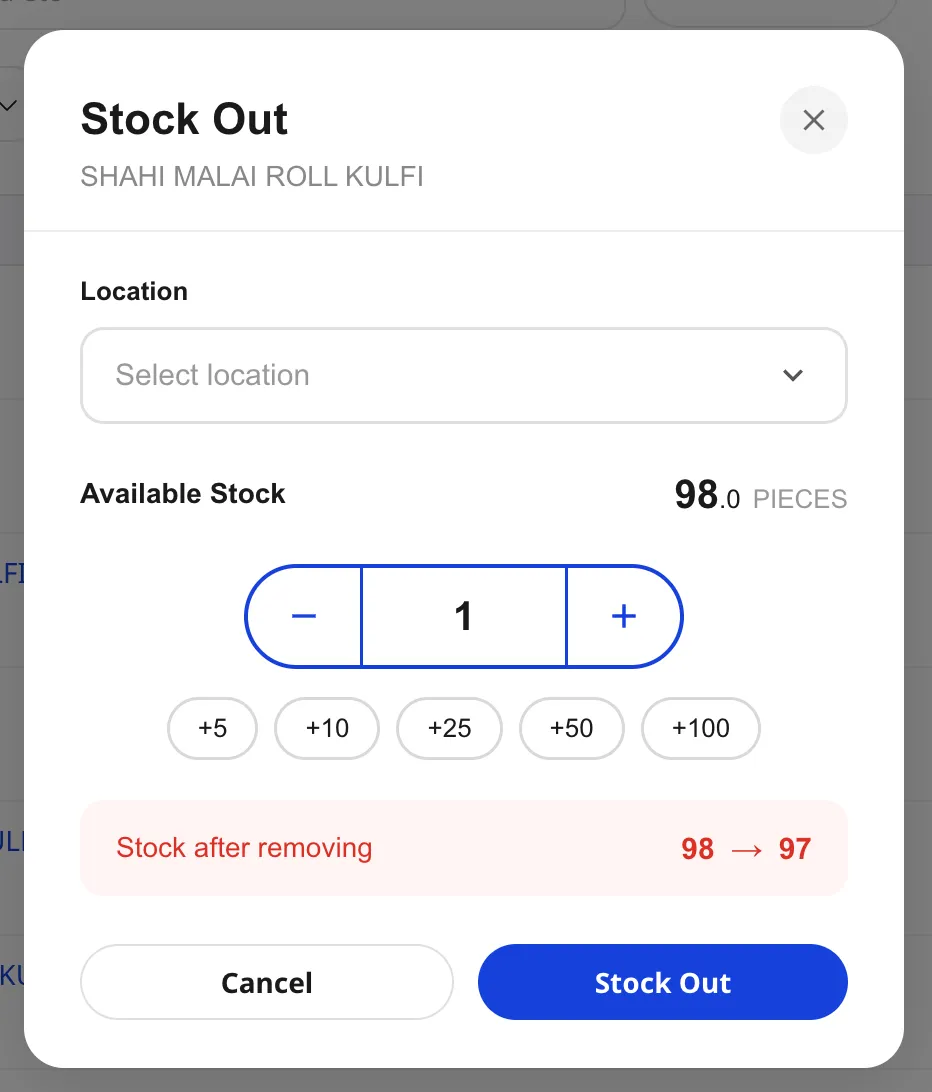
The Stock Out modal mirrors Stock In with two differences:
- The preview banner is red and reads “Stock after removing” — the colour change is a safety cue that you are about to lower inventory.
- The save button is labelled Stock Out and applies a subtraction.
Shoopy will not let Stock Out push the on-hand count below zero from this modal. If you try to remove more units than are available, the value clamps at the available stock.
Updating stock per location
Multi-location stores keep a separate on-hand count for every location — the same SKU can show 50 units at the warehouse, 12 at the flagship store, and 0 at the kiosk. The Location dropdown in the modal is the single switch that decides which counter changes.
- Pick the location before entering a quantity, so the Available Stock value updates to reflect that location.
- Repeat for each location that needs an adjustment. One shipment that splits across two stores becomes two Stock In actions — one per location.
- A Location Admin sees only their assigned locations in the dropdown, so they cannot accidentally adjust stock at a location they do not run.
For more on multi-store setups, see Location-wise inventory in Shoopy.
What you cannot do from this modal
A few common asks are intentionally outside the per-row Stock modal.
- No batch / multi-SKU update. Stock In and Stock Out run one SKU at a time. For ten or more adjustments, export to CSV, edit the stock column, and re-import — see Bulk product upload via CSV.
- No reason or note field. The modal records the quantity change only — there is no free-text reason. If you need to log why (damaged, sample, theft), keep that record in your operations sheet for now.
- No negative on-hand count. Stock Out clamps at zero, which prevents accidental oversells caused by typos.
- No order deduction. Online and POS orders adjust stock on their own. Do not also Stock Out for an order — that double-counts.
Tips
- Pick the location first. Available Stock changes per location, so choosing the location before typing a quantity prevents typing against the wrong counter.
- Use quick-add chips for shipments. A 100-unit case is one tap on
+100. The chips stack — tap+50then+25to add 75. - Check the stock-after banner before saving. The green / red preview is the last line of defence against typos — a quick glance catches a missing zero.
- Stock Out only for non-sale movements. Damaged stock, samples, shrinkage. Otherwise let the order flow handle the deduction.
- For ten or more SKUs, switch to CSV. Repeating the modal action ten times is slower than editing a spreadsheet column — escalate to Bulk product upload via CSV.
Troubleshooting
I cannot see Stock In or Stock Out in the row menu
Your role does not include inventory permissions. Ask the store Owner to grant Catalog Manager or Location Admin access. Owners and Admins always see Stock In and Stock Out.
The Location dropdown is empty
Single-location stores do not need to pick a location — the modal saves against the default. If you expect multiple locations and the dropdown is blank, your account may be scoped to no assigned location. Ask the Owner to assign at least one location to your user.
Stock Out will not let me remove the quantity I typed
Stock Out clamps at zero — you cannot push on-hand below 0 from this modal, so the largest Stock Out you can apply is the current Available Stock value. If the on-hand count is wrong, do a count correction (Stock In to the right number) instead.
Stock did not change after I clicked Save
Check for a toast at the top of the screen — a red error toast means the save failed (network or permission). Retry the action. If it persists, refresh the page and confirm the catalogue list shows the expected current quantity before retrying.
I want a history of who changed stock and when
A built-in stock-history view is not available in the modal. Until that lands, keep a running record in your own operations sheet — date, SKU, location, quantity, reason, and user.
Can I update stock for several variants of the same product at once?
No — the Stock modal handles a single SKU per save, and every variant has its own SKU, so stock updates are always per variant. To adjust ten or more in one go, export and re-import via CSV.