 Shoopy
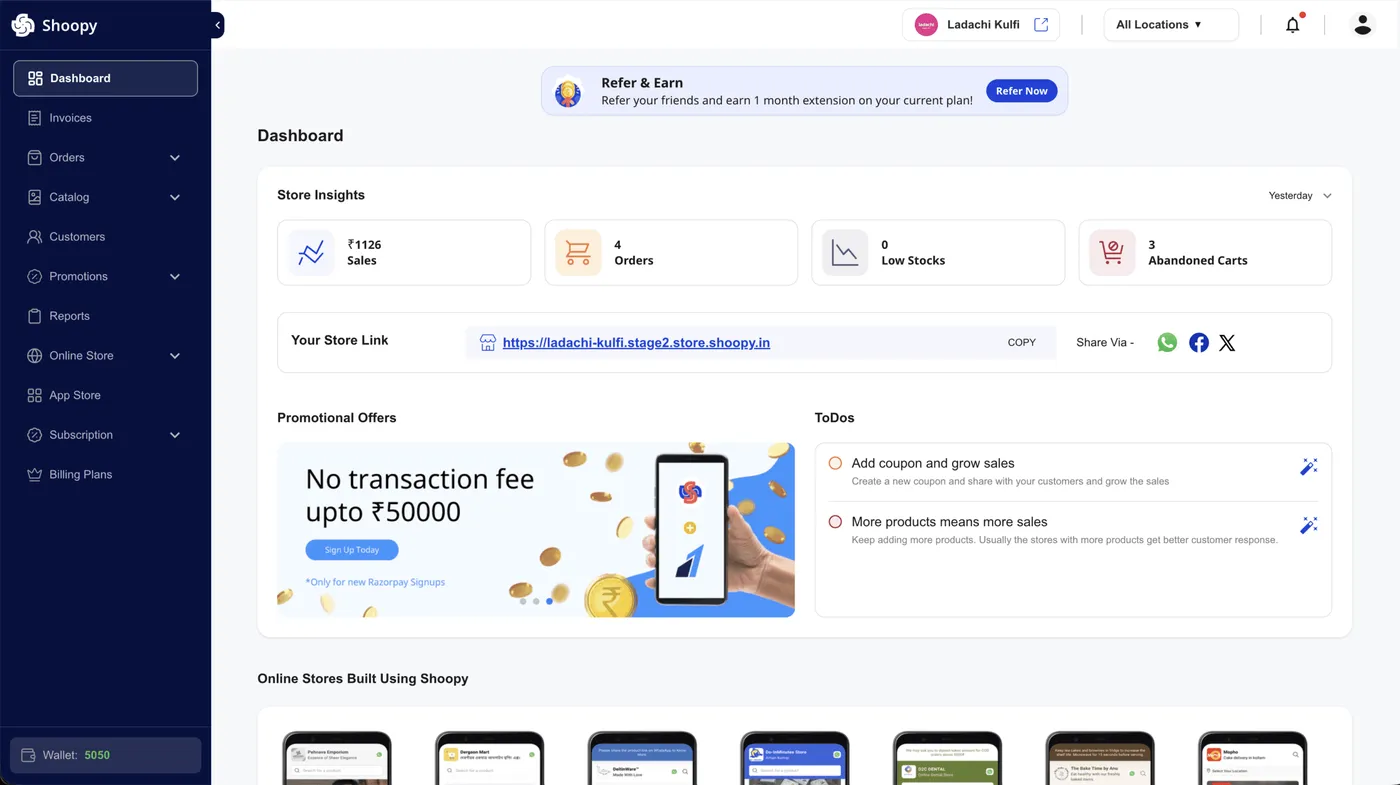
 Shoopy dashboard KPIs explained
What Sales, Orders, Low Stocks, and Abandoned Carts actually measure, and how the date range shapes each number.
The dashboard KPIs are the four insight cards at the top of the home dashboard. Each card answers one question about your store, and each updates when you switch the date range, so you can read the day in seconds. For a live storefront that feeds these KPIs, see www.aziri.in.
For the parent tour of the home page, see Understanding the Shoopy home dashboard. For the order and stock tools behind these numbers, see orders and inventory.
Before you begin
- Sign in at
web.shoopy.in. For details, see Logging in with OTP. - Your role must allow insights — owners, admins, and location admins see the cards.
- Some KPIs are gated. A Sales Rep can’t see Abandoned Carts.
- New term? Check the Glossary of Shoopy terms.
The four KPIs at a glance
The four cards sit side by side at the top. Three of them follow the date-range filter; Low Stocks is always current, so your “Low Stocks” number never changes when you switch from “Today” to “Last Month”.

| KPI | Follows date range? | Shows current state? |
|---|---|---|
| Sales | Yes | — |
| Orders | Yes | — |
| Low Stocks | No | Yes |
| Abandoned Carts | Yes | — |
Sales KPI — revenue for the range
Sales is the revenue for orders created in the selected range. The number uses your store’s currency symbol — Indian stores see ₹, US stores see $. This is money in, not an orders count.
- Currency: Pulled from your store settings. The default is ₹.
- Date range: Today, Yesterday, This Week, Last Week, This Month, or Last Month.
- Location: If you’ve picked a store location, Sales counts only that location.
For a deeper look at the filters, see Shoopy dashboard date ranges.
What the Sales KPI does not show
- It doesn’t show lifetime revenue. For that, use the Orders report with “All time”.
- It doesn’t split by payment mode. For split views, open the full Orders report.
- It doesn’t forecast — it’s a past-window read, not a projection.
Orders KPI — new order count
Orders is the count of new orders created in the range. It includes both storefront and staff-created orders, so a POS sale and an online sale both count.
- What counts: Orders created within the selected date range.
- Location scope: Same as Sales — the active location filter applies.
- Relation to Sales: More orders usually mean higher Sales, but a few large orders can lift Sales while Orders stays small.
When Orders shows zero
- Today at 6 AM? You may have no orders yet. Switch to “Yesterday”.
- A wrong location filter? Check the location selector at the top.
Low Stocks KPI — current restock warning
Low Stocks shows how many SKUs are currently below your stock threshold — a live restock alert. This KPI does not follow the date range.
- Always current: The number reflects stock right now.
- Covers variants: A variant under threshold counts as one SKU.
- Click to act: Click the card to open the product list filtered by low stock.
Why Low Stocks matters first
Low stock is the only KPI that can lose you sales in the next hour, so act on it before the other cards — top up stock or adjust thresholds.
Abandoned Carts KPI — missed checkouts
Abandoned Carts counts carts that never checked out in the range. This card follows the date range but is permission-gated — a Sales Rep role doesn’t see it at all.
- Who sees it: Owner, Admin, Billing Manager, and Location Admin.
- Click to act: Click the card to open the abandoned carts list for the same range.
- Follow-up tool: Use the list to send a recovery message or offer a coupon.
For the term itself, see the Glossary of Shoopy terms.
How the KPIs refresh
The cards refresh on three triggers:
- You change the date range. All three range-aware cards re-fetch.
- You change the active store location. Every card re-fetches for that scope.
- You switch stores. Every card re-fetches for the new store.
There is no auto-refresh loop, so a live sale does not bump the card in real time. For the newest number, reselect the same date range.
While cards load, Shoopy shows a shimmer placeholder, so you know the fetch is in flight.
What changes by role
The table below sums up which KPIs each role sees:
| KPI | Who sees it |
|---|---|
| Sales | Owner, Admin, Location Admin, Marketing Manager, Sales Rep |
| Orders | Owner, Admin, Location Admin, Marketing Manager, Sales Rep |
| Low Stocks | Owner, Admin, Location Admin, Marketing Manager, Sales Rep |
| Abandoned Carts | Owner, Admin, Billing Manager, Location Admin |
For a full map of roles, see A tour of the Shoopy admin panel.
Tips
- Pair Sales with Orders. The ratio is your average order value for the window.
- Treat Low Stocks as a to-do. Open it first thing each morning.
- Use Abandoned Carts weekly. A Friday sweep can rescue weekend shoppers.
Troubleshooting
Sales looks lower than my bank deposit
Payouts lag by a day or two, so bank totals include older sales. Sales also counts order revenue, not net payout, so gateway fees and refunds can differ.
Orders count is higher than Sales seems to justify
Small orders can pile up. Ten ₹50 orders is 10 on the Orders card but just ₹500 on the Sales card, so the two numbers don’t always track.
Low Stocks stays the same after I restock
Refresh the page or switch stores and back so the low-stock list re-fetches — the KPI cards don’t auto-poll the backend.
Abandoned Carts card is missing
Your staff role lacks the Abandoned Carts permission. Ask the owner to update your role under Online Store → Users & Roles.
Screenshots