 Shoopy
 Shoopy dashboard date ranges
How the six dashboard date ranges work — Today, Yesterday, This Week, This Month, Last Week, Last Month — plus timezone, week start, and persistence rules.
The dashboard date ranges are the six options in the filter at the top of the home dashboard. They scope Sales, Orders, and Abandoned Carts to a time window, and they follow calendar boundaries, not rolling windows. For a live storefront powering these numbers, see www.aziri.in.
For the parent overview, see Understanding the Shoopy home dashboard. For each KPI in depth, see Shoopy dashboard KPIs explained.
Before you begin
- Sign in at
web.shoopy.in. For details, see Logging in with OTP. - Your role must allow insights — owners, admins, and location admins see the dropdown.
- New terms? Check the Glossary of Shoopy terms.
Where to find the date-range filter
The dropdown lives at the top-right of the insight-card strip. Open Dashboard in the sidebar and look above the four KPI cards, then click the current label to open the list.
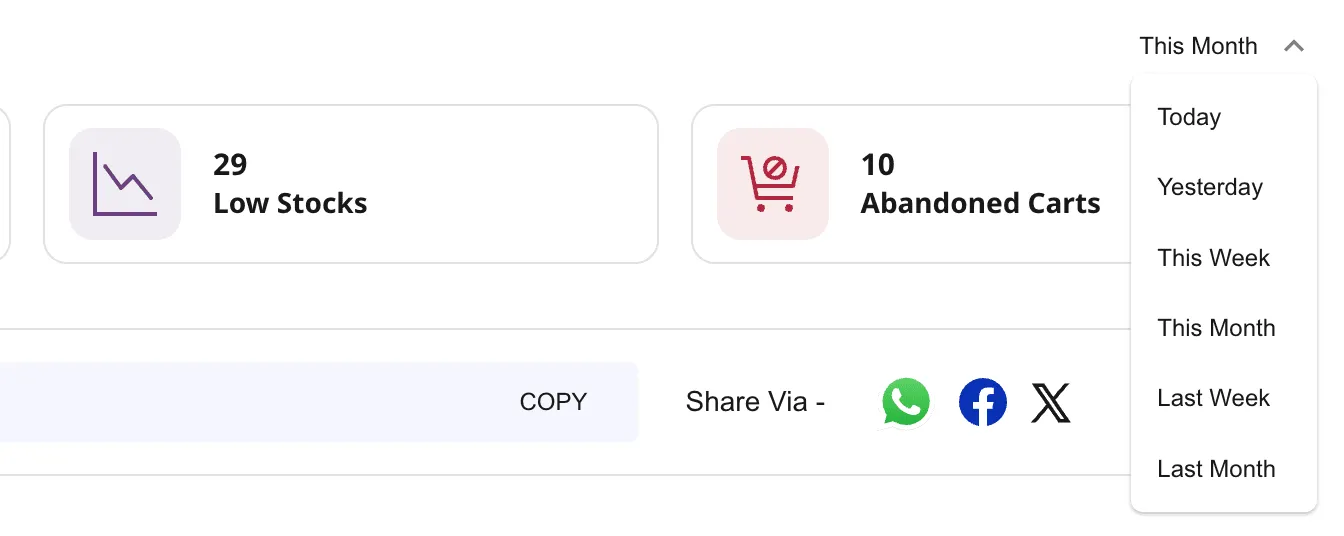
The six date ranges
The dropdown lists six options in this order:
| # | Range | Covers | Typical use |
|---|---|---|---|
| 1 | Today | Today 00:00 → 23:59 | Intraday pulse check |
| 2 | Yesterday | Full previous calendar day | End-of-day review |
| 3 | This Week | Monday 00:00 → now | Week-in-progress view |
| 4 | This Month | 1st of this month → now | Month-to-date totals |
| 5 | Last Week | Previous Monday → Sunday | Weekly review meetings |
| 6 | Last Month | 1st → last day of previous month | Month-close reports |
The order is not chronological pairing — “This Month” sits before “Last Week” in the list.
How weeks are counted
Shoopy treats Monday as the first day of the week. “This Week” on a Thursday covers Monday → Thursday, and “Last Week” is the most recent Monday → Sunday block.
For example, on Thursday, April 23, 2026:
- This Week = Mon April 20 → Thu April 23
- Last Week = Mon April 13 → Sun April 19
How months are counted
“This Month” and “Last Month” follow calendar boundaries, not rolling 30 days.
- This Month runs from the 1st of the current month to now — a month-to-date view, not a full-month projection.
- Last Month runs from the 1st to the last day of the previous month. For example, on April 23, Last Month = March 1 → March 31.
On the 3rd of any month, “This Month” covers only three days, so don’t compare it to “Last Month” for trend analysis — use “Last Week” vs “This Week” at week-end for like-for-like.
Timezone behaviour
The date ranges use your browser’s local timezone — “Today” means today on the device you’re signed in from. A staff member in Dubai and one in Mumbai can see slightly different ranges at the same moment.
- What this means: A sale placed at 11:45 PM IST on Monday is “Today” for an IST staff user but may be “Yesterday” for a staff user in a later timezone.
- What to do: For audit-grade numbers, review from a single device or a single location. Prefer “Yesterday” for daily reports — it’s always a closed calendar day.
How Shoopy remembers your pick
Shoopy saves your date-range selection in the browser, so if you close the tab and reopen the dashboard, your last pick returns. A few caveats apply:
- Per-browser, per-device. Chrome on your laptop and Safari on your phone remember separately.
- Cleared on logout. A fresh sign-in starts on Today again.
- Cleared on cache reset. “Clear browsing data” resets the pick to Today.
On first load, Shoopy defaults to Today.
What the date ranges affect
Three of the four KPIs react to the range:
| KPI | Follows the date range? |
|---|---|
| Sales | Yes |
| Orders | Yes |
| Low Stocks | No — always current |
| Abandoned Carts | Yes |
Low Stocks never changes when you switch ranges. For a deeper look at each KPI, see Shoopy dashboard KPIs explained.
Tips
- Match range to cadence. Morning check = Today; Monday review = Last Week; month-end close = Last Month.
- Compare weeks side by side. Toggle This Week ↔ Last Week to spot growth or slowdown.
- Use Yesterday for clean dailies. Because it’s a closed calendar day, it doesn’t shift as the day rolls on.
Troubleshooting
My numbers look off near midnight
Check the time on your device. Because the ranges use browser local time, an incorrect clock shifts the window. International teams may also see slightly different “Today” values at the same moment.
The filter didn’t stick after logout
The saved pick is cleared on logout, so after you sign back in, Shoopy starts on Today. Pick your preferred range once per session.
“This Month” seems small early in the month
“This Month” runs from the 1st of the current month to now, so on the 3rd it only covers three days. Use Last Month for a full-month comparison.
I don’t see the dropdown
You may lack the View Store Insights permission. Ask the store owner to update your role under Online Store → Users & Roles.